
Installing Claude Code
Next - let’s install Claude Code on your computer. We’ll be using the Claude Code desktop app, which includes everything you need to start building.
Download Claude Code
Section titled “Download Claude Code”Windows/Mac
Section titled “Windows/Mac”- Go to claude.ai/download (or the official Claude Code download page)
- Click “Download for Windows/Mac”
- The installer will download (usually to your Downloads folder)
Install Claude Code
Section titled “Install Claude Code”Windows
Section titled “Windows”- Open the downloaded file from your Downloads folder
- Follow the installation wizard
- Click “Install” and wait for the installation to complete
- Click “Finish” when done
- Open the downloaded
.dmgfile from your Downloads folder - Drag the Claude Code app to your Applications folder
- Open Applications and double-click Claude Code
- If you see a security warning, click “Open” to confirm
Claude Code is now installed on your computer!
Connect Github to Claude Code
Section titled “Connect Github to Claude Code”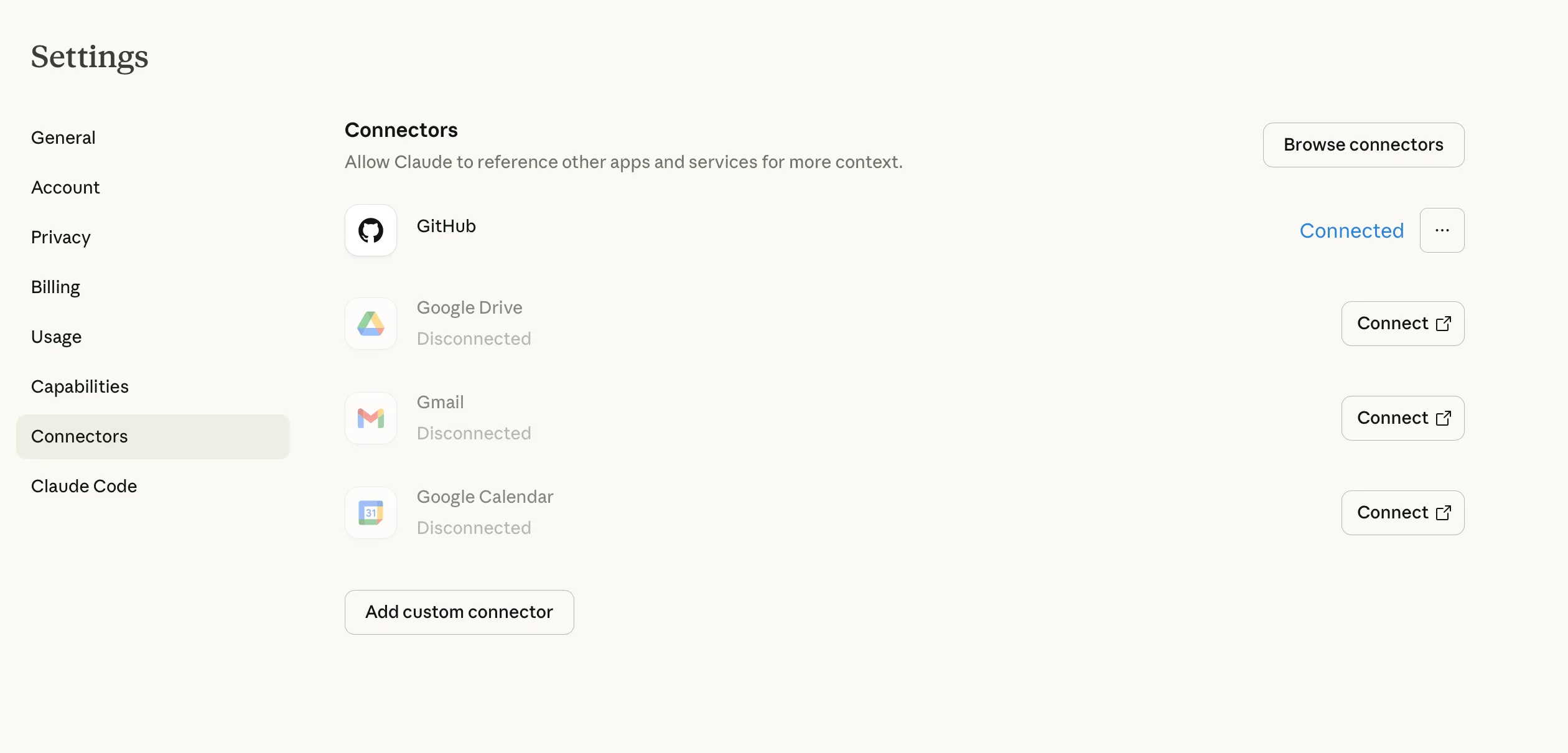
Before we start, we need to connect Claude code to Github. You need to navigate to Claude’s settings and connect Github.
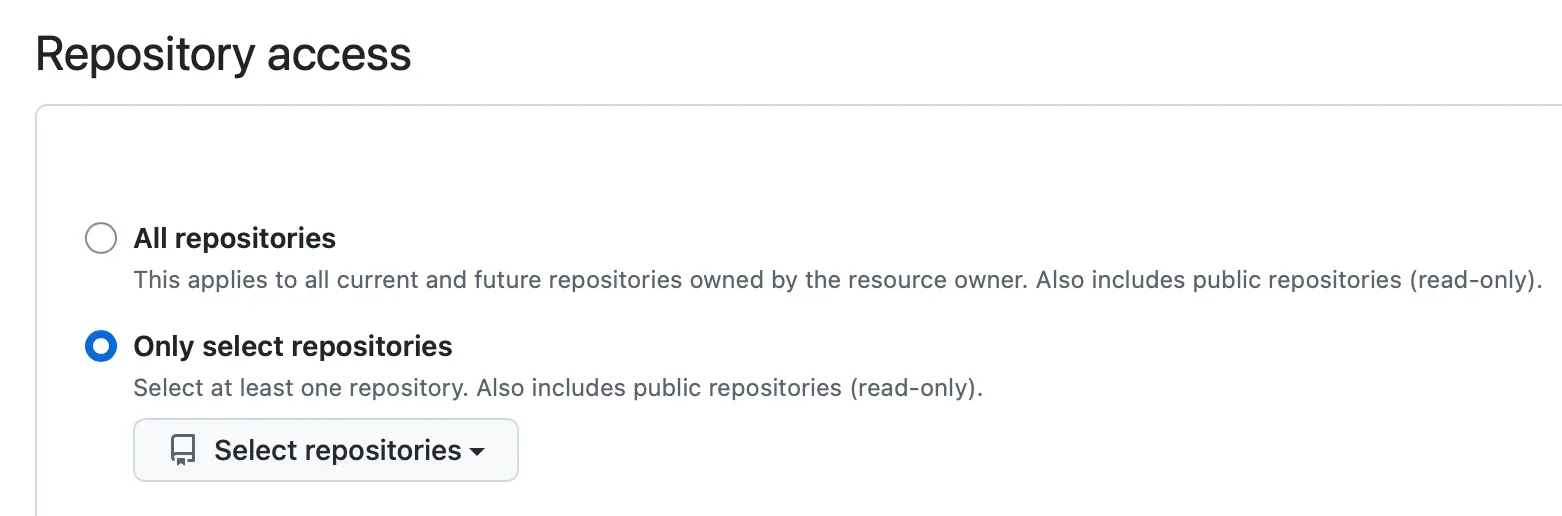
You will need to authenticate your github login and then you should be taken to the Integrations > Applications >Claude page. Here you can make a choice to select all repositories access or only the one you are working on at this moment.
If you choose to ‘Select repository’, you can select the one you have just created.
Troubleshooting
Section titled “Troubleshooting”Can’t find Claude Code after installation (Mac)
Section titled “Can’t find Claude Code after installation (Mac)”Check your Applications folder. If Claude Code is there but won’t open, right-click it and select “Open” to bypass the security warning.
Installation stuck or won’t complete (Windows)
Section titled “Installation stuck or won’t complete (Windows)”Try running the installer as Administrator:
- Right-click the installer file
- Select “Run as administrator”
- Follow the installation steps again
”App is damaged” message (Mac)
Section titled “”App is damaged” message (Mac)”This can happen with downloaded apps. Try:
- Open Terminal
- Run:
xattr -cr /Applications/Claude\ Code.app - Try opening Claude Code again
“npm is not recognized” (Windows)
Section titled ““npm is not recognized” (Windows)”Close Command Prompt completely and reopen it. The installation needs a fresh window to work.
Next Steps
Section titled “Next Steps”Claude Code is installed and Github has been setup so now you are ready to go! Next, you’ll choose a project to build with Claude Code.