
GitHub Account
GitHub is where developers store their code. Think of it as Google Drive for code.
In this section, you’ll create a free GitHub account that you’ll use for the rest of the workshop.
What is Git?
Section titled “What is Git?”Git is a time machine for your code.
Remember when you’d save files like:
design_final.psdposter_final_v2.aidesign_FINAL_FINAL.sketchdesign_FINAL_FINAL_actually_final.fig
Git solves this problem elegantly. Instead of creating copies, Git tracks every change you make. You can:
- Go back to any previous version
- See what changed and when
- Work with others without overwriting each other’s work
Git vs GitHub: What’s the Difference?
Section titled “Git vs GitHub: What’s the Difference?”| Git | GitHub |
|---|---|
| Software on your computer | Website on the internet |
| Tracks changes locally | Stores your code in the cloud |
| Free and open source | Free for public projects |
| Works offline | Requires internet |
A crash course of terms
Section titled “A crash course of terms”Before we dive in, let’s understand a few terms you would need to be familiar with.
| Concept | Everyday Analogy |
|---|---|
| GitHub | Like Google Drive(Cloud), but specifically designed for code projects |
| Repository (repo) | A folder that contains your project files |
| Commit | Saving a version of your work (like “Save As” with a note) |
| Push | Uploading your saved work to the cloud |
| Pull | Downloading the latest version from the cloud |
You don’t need to memorize these now - they’ll make more sense once we use them!
Setting up your GitHub Account
Section titled “Setting up your GitHub Account”Step 1:
Section titled “Step 1:”Head over to to github.com and create your own account. Choose a good username when creating your account. The username you choose wil be the default name used for the Github pages so choose something professional (unlike me).
Step 2:
Section titled “Step 2:”Download Github Desktop and login with your newly created credentials.
Step 3:
Section titled “Step 3:”Create a new repository(repo) using Github Desktop.

Name it using the following format: [username].github.io, where username is your github username. This is what will be used as your free github domain. Please do not make mistakes, the name of the repository should be identical in spelling and case to your github username.
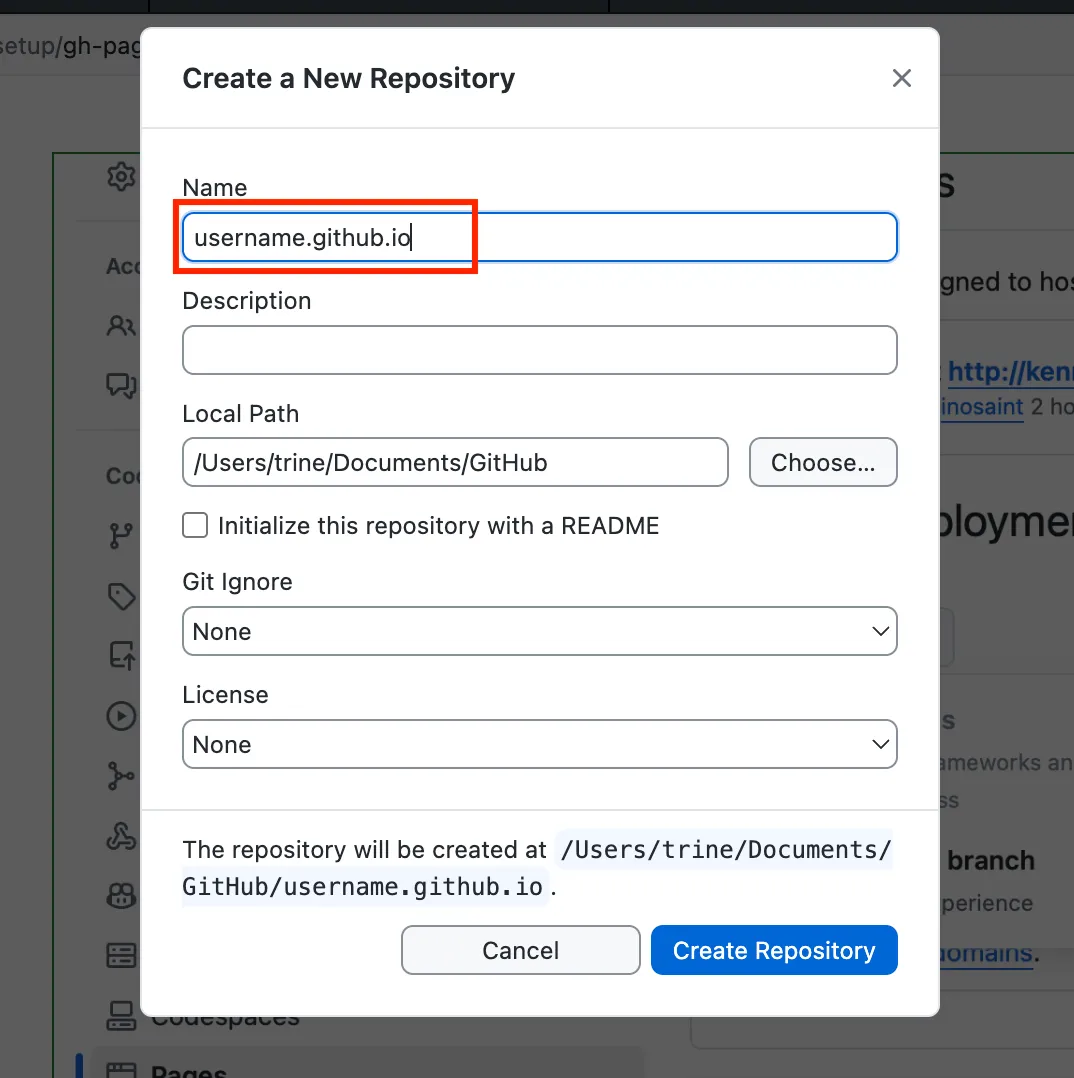
You can head over to Github’s help article to learn more about Github Desktop and it’s interface.
Step 4:
Section titled “Step 4:”Publish the repo. While publishing, please remember to uncheck ‘Keep this code private’ checkbox.
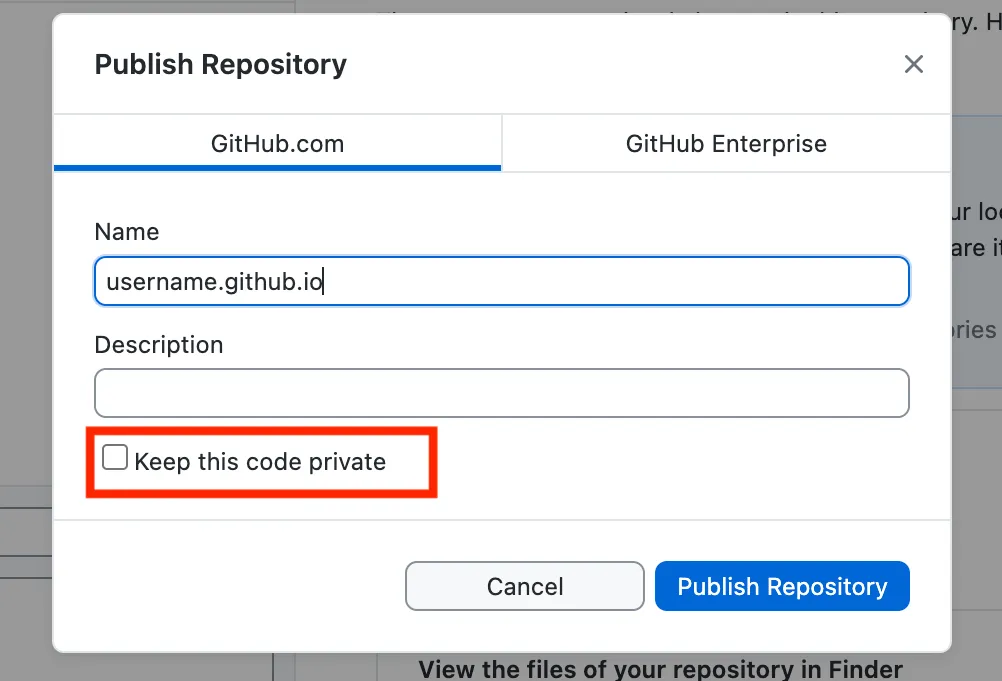
Step 5:
Section titled “Step 5:”Head over to Github.com and navigate to your newly created repository and click on Settings.
Step 6:
Section titled “Step 6:”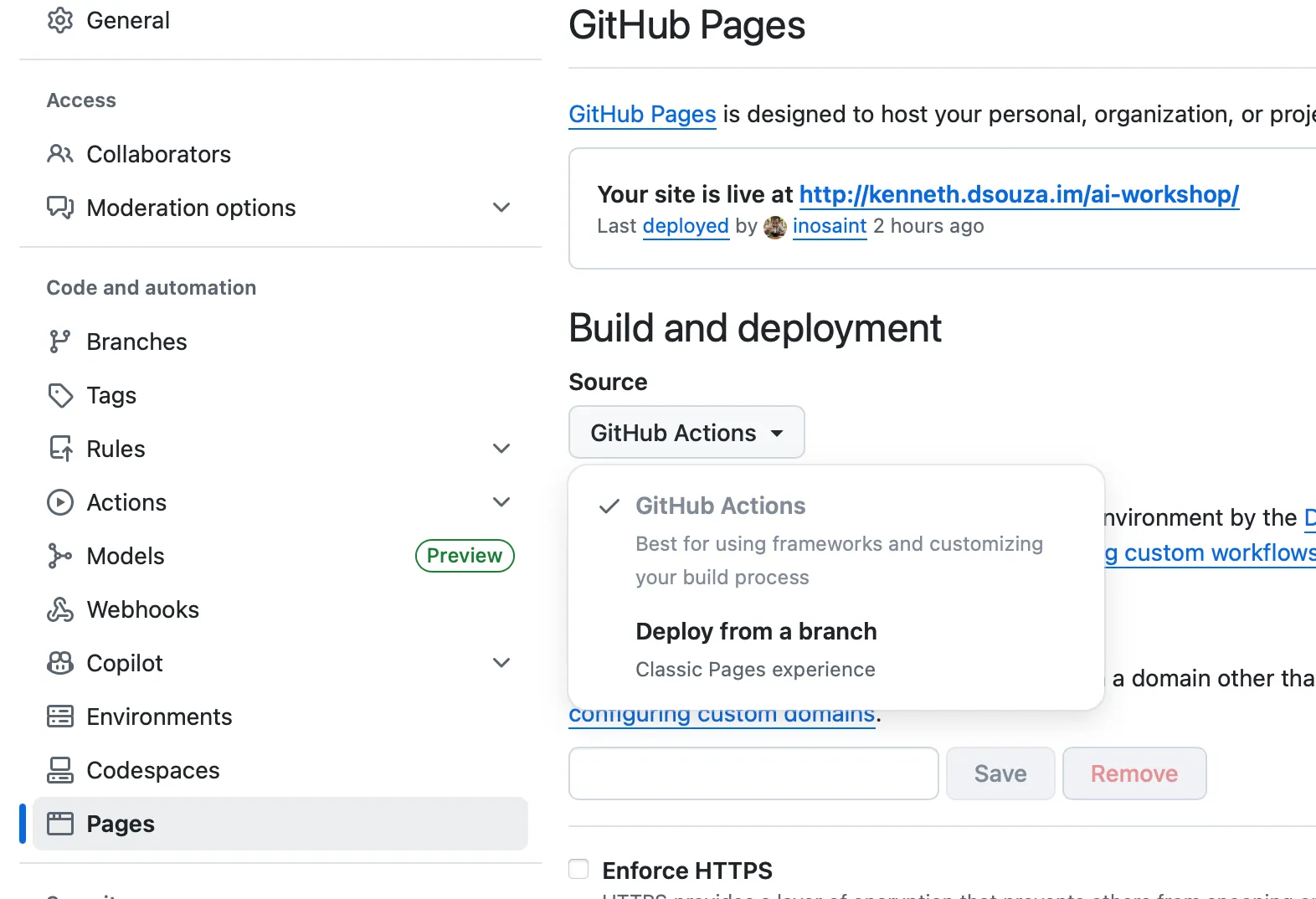
Navigate to pages on the left nav and select, ‘Deploy from a Branch’ and select main / root and click ‘Save’
If you had not unchecked the ‘Keep this code private’ checkbox when you were publishing the repository, you will need to follow extra steps. You will need to go to Setting > General and then scroll all the way down the page to the ‘Danger Zone’ to find ‘Change repository visibility’ from Private to Public.
Next Steps
Section titled “Next Steps”Your GitHub account is ready. In the next section, we’ll install Claude Code on your computer.